
A shopper fills a cart with gifts and wants their partner to pay. A wholesale buyer needs a manager to approve an order. Someone in a WhatsApp group asks, “what did you get?” In every case the shopper wants to do the same thing: send the whole cart to another person.
WooCommerce doesn’t do this out of the box. This guide explains why, shows the closest thing you can do without a plugin, and then shows how to share a WooCommerce cart as a link with the free Cartlet plugin, step by step and without writing code.
The quick answer
- Install and activate the free Cartlet plugin from Plugins → Add New.
- A Share button appears below the cart straight away.
- Shoppers tap it to copy a short link, open WhatsApp or another app, or show a QR code.
- Whoever opens the link sees the same products and quantities at today’s prices, and adds them to their own cart in one click.
That’s the whole setup. The rest of this guide covers what happens at each step, the settings worth changing, and how you as the store owner can send carts to customers too.
Why WooCommerce can’t share a cart by default
A WooCommerce cart belongs to one browser session. It’s stored against a cookie (or, for logged-in customers, their account), so there’s no address you can copy and send. If a shopper pastes the /cart/ URL to a friend, the friend sees their own cart, usually empty.
To share a cart, something has to take a snapshot of it (which products, which variations, how many), give that snapshot its own link, and rebuild the cart for whoever opens it. That’s the job of a share-cart plugin.
The no-plugin workaround (and its limits)
WooCommerce does understand one kind of cart URL: an add-to-cart link for a single product.
https://yourstore.com/cart/?add-to-cart=123&quantity=2Replace 123 with a product ID and anyone who opens the link gets two of that product in their cart. It’s handy for a “buy now” button in an email, but it falls short for sharing a cart:
- It adds one product. Real carts have several, and WooCommerce has no built-in way to add many products from one link.
- Shoppers would have to look up product IDs and build the URL by hand, which nobody will do.
- Variable products need the variation ID and attributes in the URL as well.
- You can’t see how often links are shared or opened.
So the workaround is fine for a single campaign product, but not for letting shoppers share what’s in their cart.
How to share a WooCommerce cart with Cartlet, step by step
Cartlet is a free plugin on WordPress.org. It needs WooCommerce, WordPress 6.6 or newer and PHP 7.4 or newer. There’s no account to create and no licence to enter.
Step 1: Install Cartlet
In your dashboard, go to Plugins → Add New, search for “Cartlet”, then click Install Now and Activate. There’s no permalink step: Cartlet registers its short links itself.
A “Set up Cartlet” notice offers a 60-second setup wizard. It’s optional; the defaults work.
Step 2: Check the Share button on your cart
Add a couple of products to your cart and open the cart page. You’ll see Share and Save buttons below the cart. They work with the classic cart and with the Cart and Checkout blocks, and their style follows your theme.
Step 3: Share the cart
Tap Share and a popup opens with everything a shopper needs:
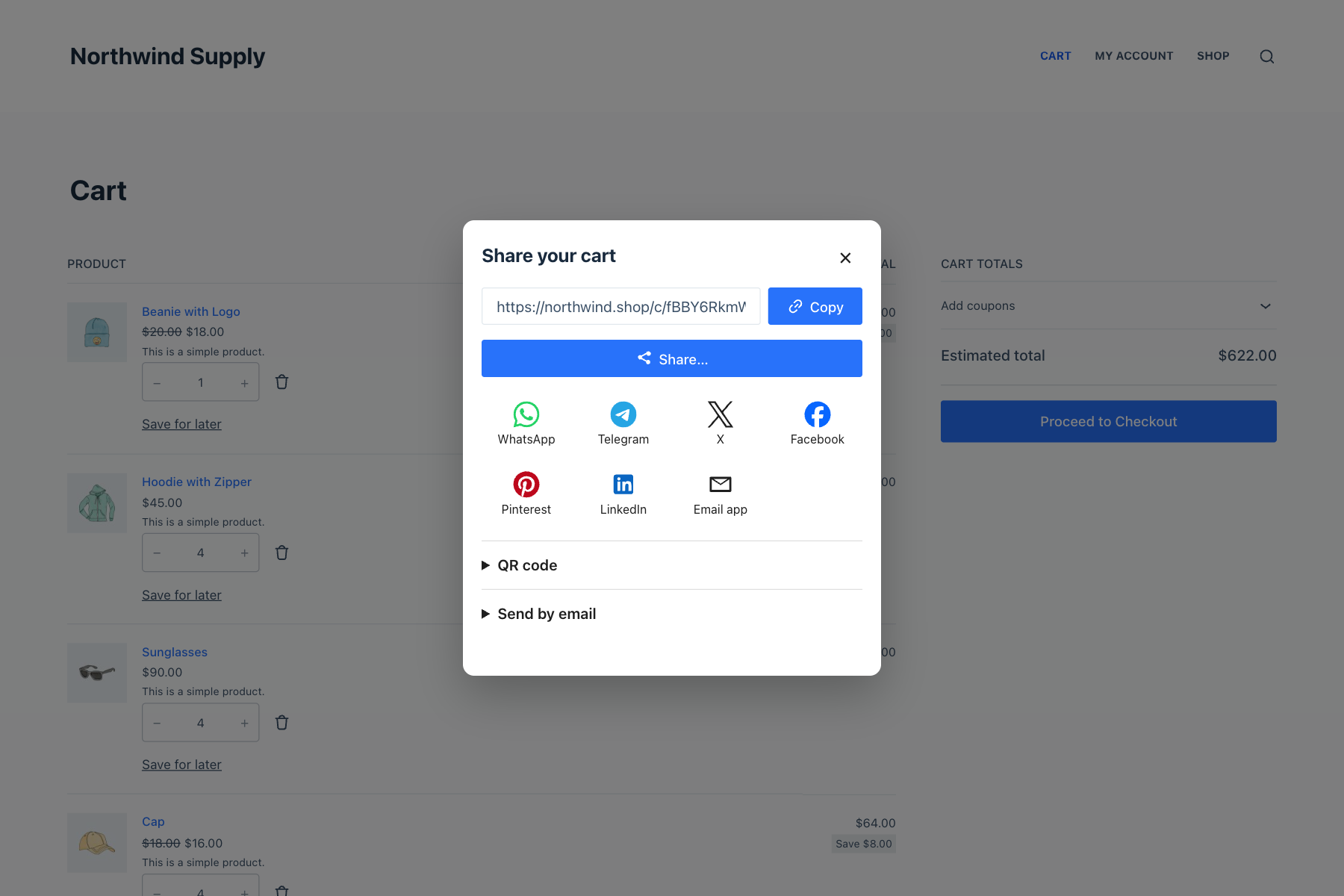
- A short link such as
yourstore.com/c/abc123, ready to copy. - The phone’s own share menu, plus buttons for WhatsApp, Messenger, Telegram, X, Facebook, Pinterest, LinkedIn, SMS and email.
- A QR code, drawn in the browser and downloadable as a PNG, for showing on a screen or printing.
- A personal note for the recipient, such as “Here’s my birthday list!”.
- Send by email from your store, as a WooCommerce email you can edit like any other.
Guests can share exactly like logged-in customers. Nobody needs an account to send or open a cart.
Step 4: What the person who opens the link sees
The link opens a preview page in your store, not a bare cart. It shows the products and quantities, with today’s prices and stock, not the prices from the day the cart was shared. Anything that changed price or went out of stock is marked.
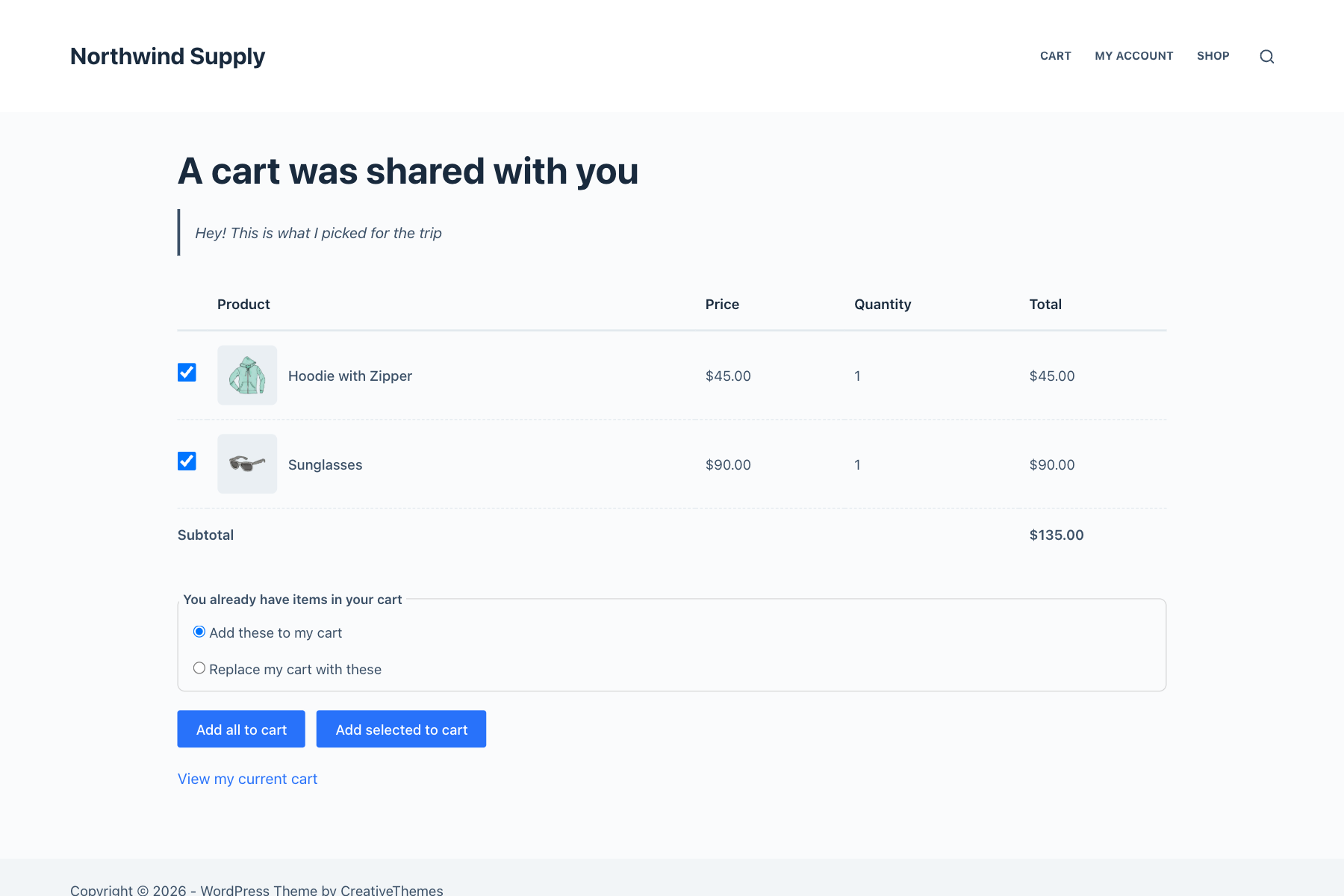
From there they can click Add all to cart or pick individual items, and choose whether to add them to their own cart or replace it. Then they check out as usual.
If a link can no longer be opened (because it expired, was turned off, or its cart is gone), visitors see “This link is no longer available” with a button back to your shop, rather than an error.
Step 5: Choose where the buttons appear and which apps show
Go to Cartlet → Settings. Under Display you can add the buttons to the mini-cart, the checkout and product pages, not just the cart. You can also pick which share apps appear, set the default message for the personal note, and choose a button style (follow your theme, or Solid, Outline, Soft or Text link, with an icon-only option).
Need a button somewhere else, such as a landing page? Use the Cart button block or the [cartlet_share] shortcode.
Bonus: send a ready-made cart to a customer
Sharing works the other way too. In Cartlet → Cart links you can build a cart in wp-admin, with products and variations, quantities, an optional coupon, a heading and a message, and send it as one link or QR code. It’s useful for quotes, bundles, influencer links and email campaigns.
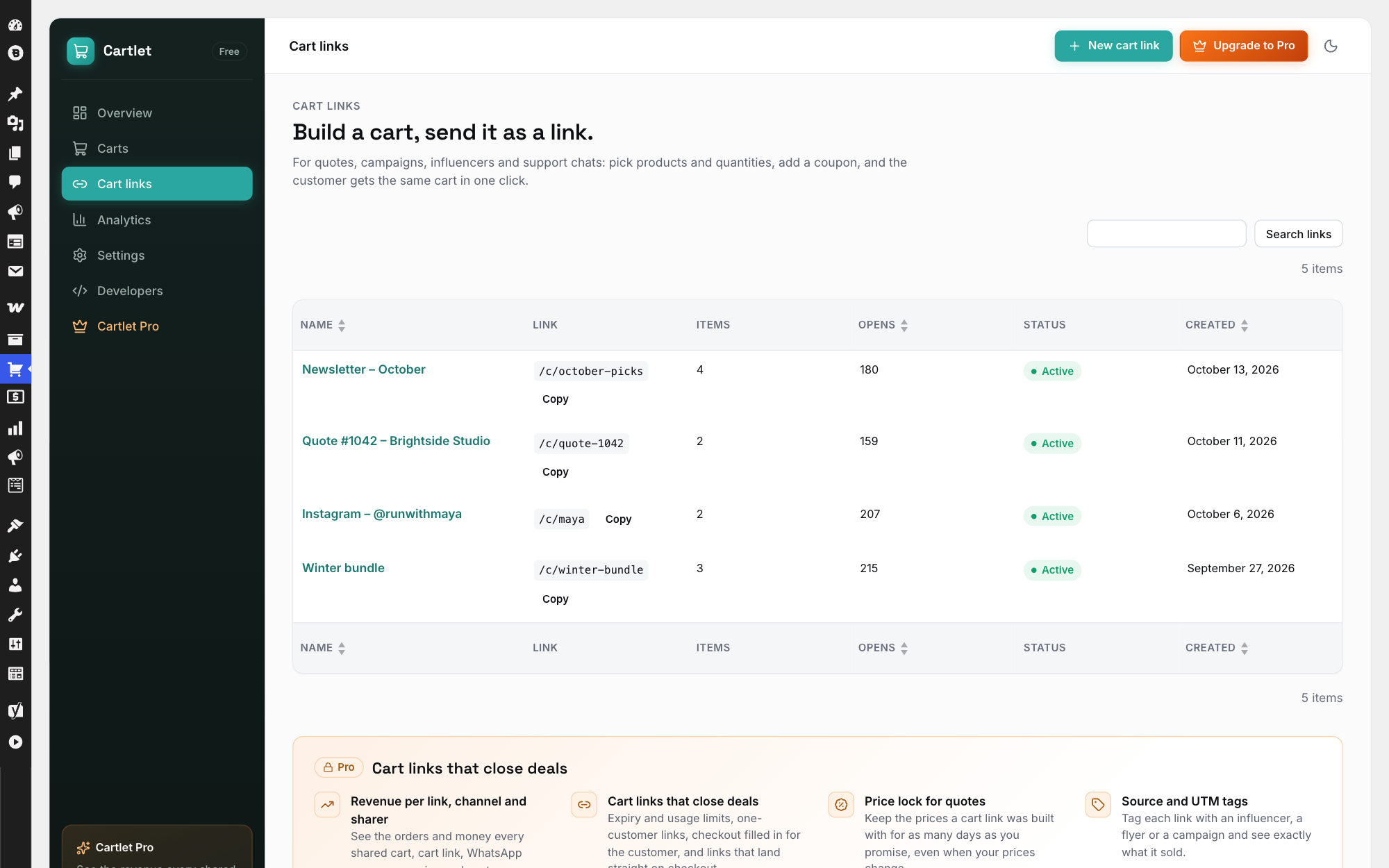
You can give the link a readable name (/c/winter-bundle), decide whether it opens a preview or goes straight to the cart, set an expiry date, and turn it off at any time. Each link has its own opens counter. There’s no limit on how many you create.
See how often carts are shared
Cartlet counts shares, opens, saves and restores for the last 7, 30 or 90 days, and lists every shared, saved and merchant cart under Cartlet → Carts. It does this without calling any outside service. If you also want to know which shared links turn into orders and revenue, that’s what Cartlet Pro adds.
Tips to get more carts shared
- Put the button in the mini-cart. Most sharing happens on phones, and the mini-cart is always one tap away.
- Give shoppers a reason. A line near the cart such as “Want someone else to pay? Send them your cart” turns a feature into a habit, especially before the holidays.
- Write a friendly default note. The message that goes with the link is the first thing the recipient reads.
- Keep WhatsApp near the top if your customers live there. You choose which apps show.
FAQ
Do shared links keep the prices from the day they were shared?
No. Prices and stock are checked again when the link is opened, and the preview marks anything that changed.
Can guests share a cart?
Yes. Guests share carts exactly like logged-in customers, and the person who opens the link doesn’t need an account either.
Does it work with the WooCommerce Cart and Checkout blocks?
Yes, and with the classic cart and checkout, the Mini-Cart block and the classic mini-cart widget.
What about variable products?
Simple, variable, grouped children, virtual and downloadable products all work in shared carts. The chosen variation travels with the link.
Will it slow my store down?
Cartlet adds about 5 KB of JavaScript and 4 KB of CSS (gzipped) on pages that show its buttons, and nothing on other pages. It doesn’t use jQuery on the storefront, and it works with page caches.
Is this the same as a wishlist?
Not quite. A wishlist keeps single products a shopper likes; Cartlet shares and saves the whole cart, with quantities and variations, and puts it back in one click. Many stores keep their wishlist plugin and add Cartlet next to it.
Wrapping up
Shoppers already send products to each other. Letting them send the whole cart, as a link, a QR code or a WhatsApp message, means more of those conversations end in an order on your store. With Cartlet it takes one plugin and about a minute.
Get Cartlet free on WordPress.org, or watch the 1-minute demo first.